
- You will need to set the new employee up in Hilti On Track
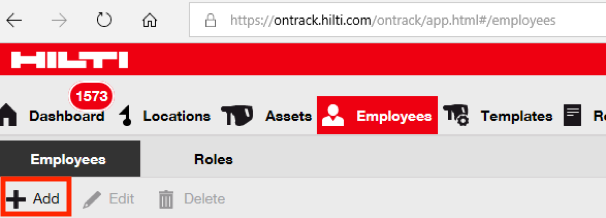
- Select the Employee tab on the top
- Use the search bar on right hand to check to see if they are already in the system.
if not, hit the + ADD tab:
- Enter first name, last name, type, mobile, and responsibility.
- Under Designation, we use what department they are under
- Enter their NCS employee email address.
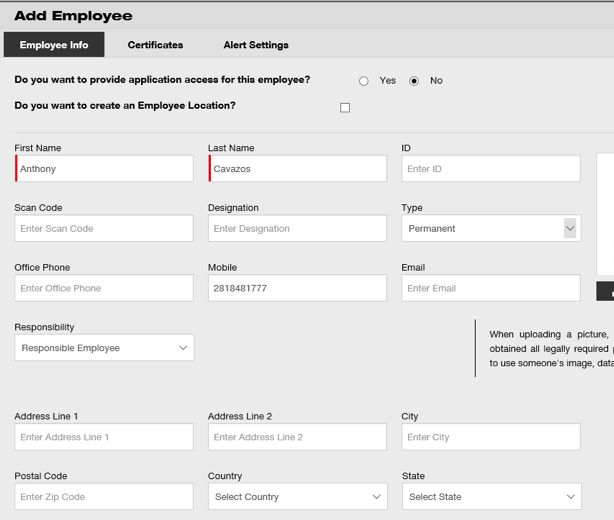
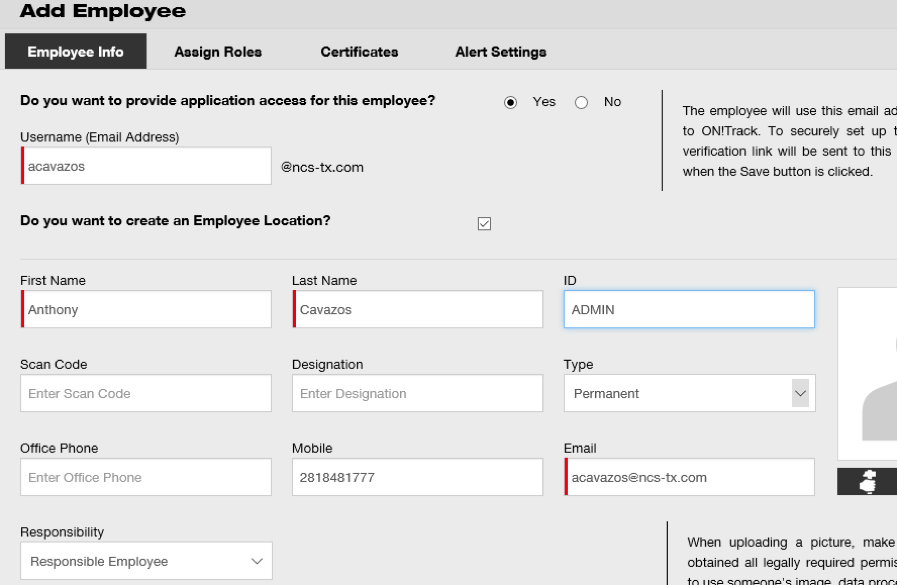
7. Select both boxes below.
A. Do you want to provide application access? YES!
B. Do you want to create an Employee Location? YES!

8. It will switch screens. Make sure to type in their user name very clearly. It needs to be in the exact same format as their NCS Email.
**This will be their username from now on. You cannot edit it. If you make a mistake, you will need to delete them and start over.
- Tab to the ASSIGN ROLES tab.
- Select accordingly. DO NOT CHOOSE “EVERYONE”
- HIT SAVE AND EXIT
- At this point, an email will go to the employee you just set up. They have 24 hours to click on the link.
- ** The link is to set up their password.
- Have them open the link
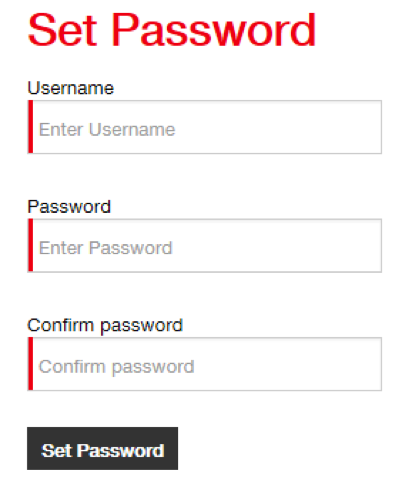
The username will be their email address
Password bust is ONE CAPITAL and ONE NUMBER and eight digits long.
Once created, they may exit their email.
- Technician now needs to download the HILTI ON TRACK APP
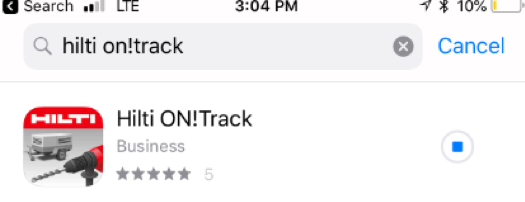
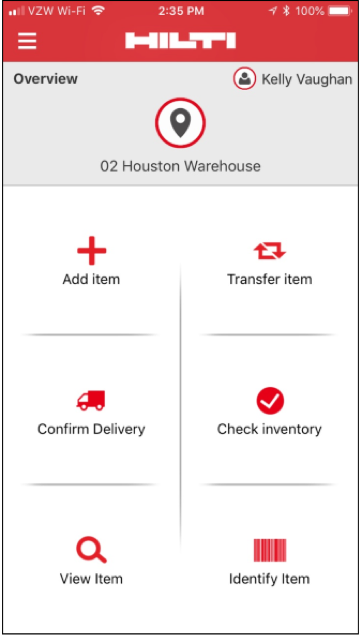
- Once downloaded, have them enter their user name and password.
- They need to select the appropriate warehouse for their location
- They need to select English.
- Now they may transfer.
Comments
0 comments
Please sign in to leave a comment.