
Follow these steps to clear cached data for an Android app. We've used stock Android 12 for these instructions; your device may look a bit different or use different menu names.
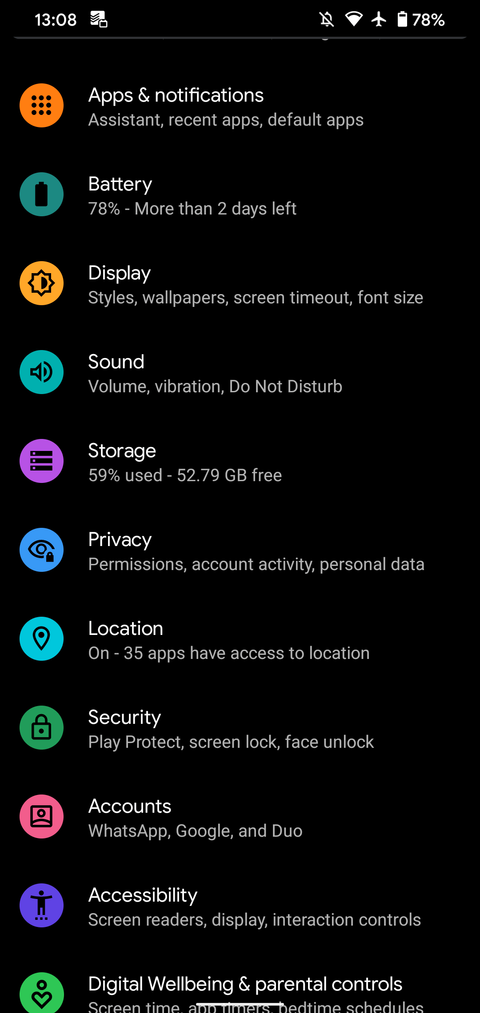
- Open Settings and select Storage.
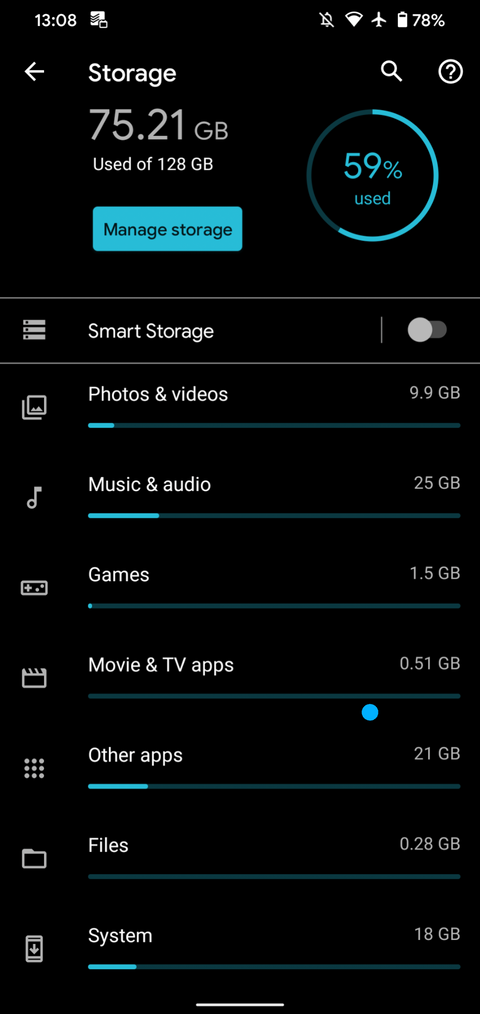
- In the resulting list, tap the Apps entry (Other Apps on Android 11 and earlier). This will take you to a list of all the apps installed on your phone.
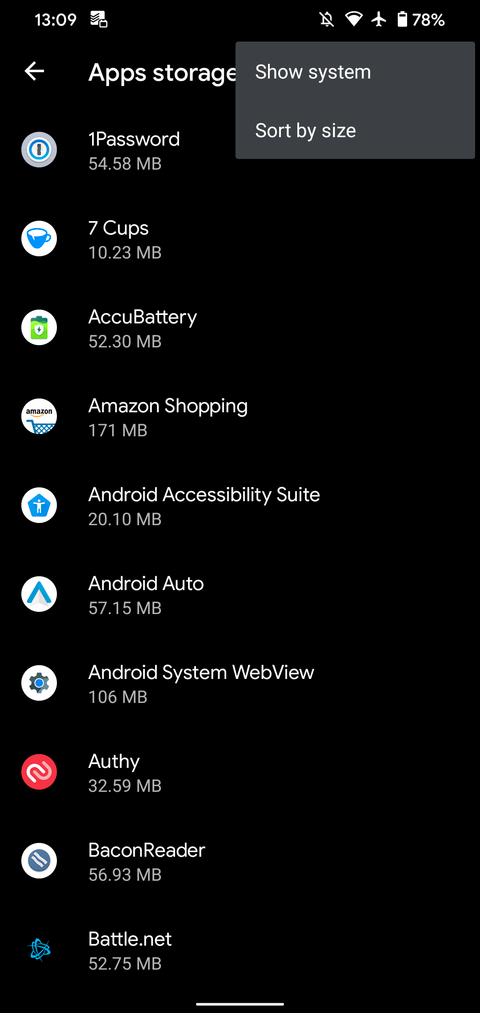
- Choose the app whose cache you want to clear. To see which apps are taking the most space, tap the three-dot menu in the top-right corner and choose Sort by size. We'll use Chrome as an example.
- On the app's info page, tap the Clear Cache option.
Image Gallery (4 Images)
 |
 |
 |
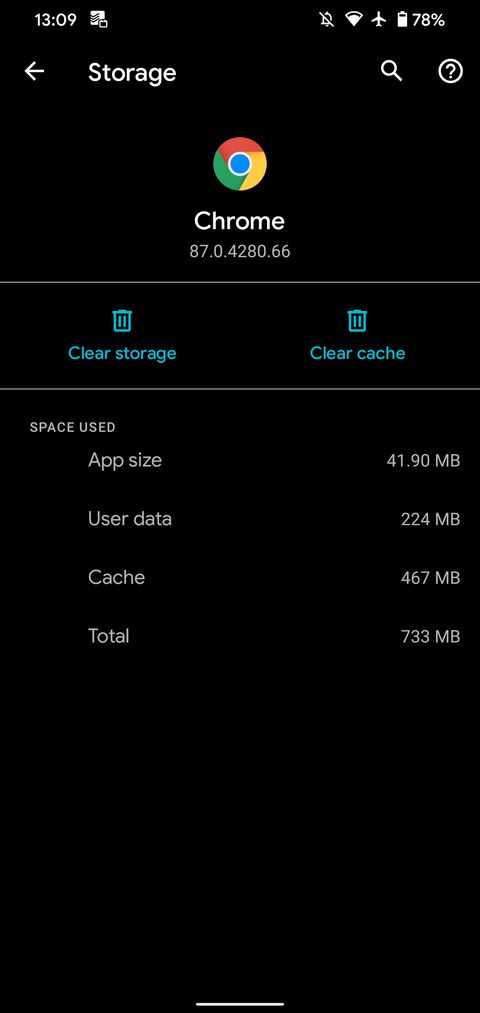 |
That's all it takes to clear the cache files for any app on your Android phone. Keep in mind that if you tap Clear Storage instead, you'll remove all data from the app. This essentially resets it to a fresh state, like you just installed it from the Play Store. Only do this if the app is seriously misbehaving.
Comments
0 comments
Please sign in to leave a comment.