
There are a lot of ways to customize your video experience—and the video you share with others—when you join a Teams meeting or call.
First, verify your video on or off:
Before a meeting
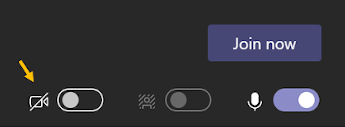
To turn on your video before a meeting, just select Turn camera on  right before you join.
During a meeting
You might want to turn your video on and off over the course of a meeting—if you'd prefer people only see you while you're talking, for example. Go to the meeting controls anytime during the meeting and tap Turn camera on .

Change your background before a meeting starts
While you're setting up your video and audio before joining a meeting, select Background effects  . It's just to the right of the mic switch. Your background options will display on the right.
Choose Blur to blur your background. You'll appear nice and clear while everything behind you is subtly concealed.
You can also replace your background with one of the images provided, or with one of your own choosing. To use an image of your own, choose Add new and then select one to upload from your computer. Make sure it's a .JPG, .PNG, or .BMP file.
Your new background will persist in all your meetings and calls until you change it again.
To turn off background effects, select  .
.
Change your background during a meeting
To alter your background after you've already joined a meeting, go to your meeting controls and select More actions  > Show background effects.
Select Blur to blur your background, or choose from the available images to replace it. To upload an image of your own, select Add new and pick a .JPG, .PNG, or .BMP file from your computer.
To turn off background effects, select .
You'll be able to preview your chosen background to see how it looks before you apply it.
Comments
0 comments
Please sign in to leave a comment.