
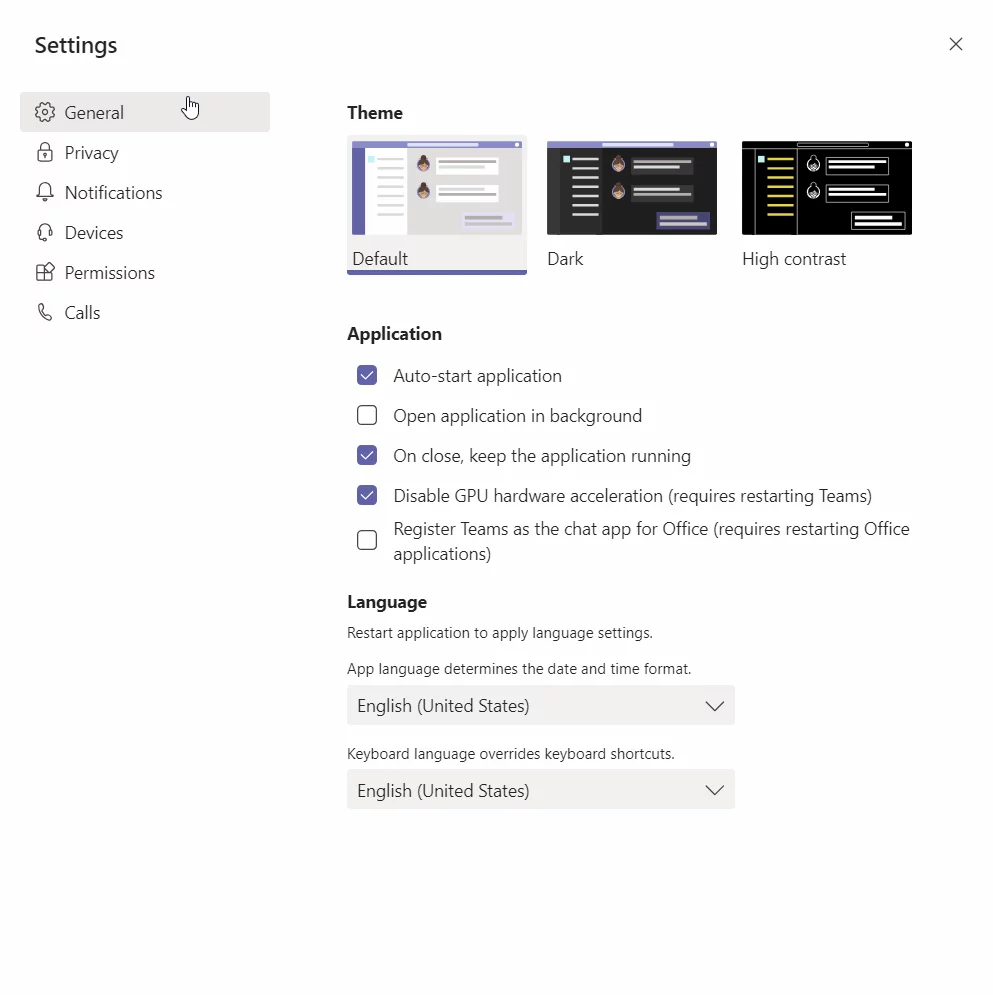
Another popular solution that came forward was where disabling the GPU (Graphics Processing Unit) hardware acceleration in Microsoft Teams seems to put less load on Teams as a whole. We can try using this solution and see if this does the trick.
- Open Microsoft Teams. Click on your ... in the upper right corner and then click on Settings
- Under application select Disable GPU hardware acceleration (requires restarting Teams)
- Close the Microsoft Teams. Clicking on the close button in the Microsoft Teams will not kill the process, but minimize it to the taskbar. You should close the Microsoft Teams via Task Manager or by doing right click on the Microsoft Teams in the taskbar and then click Quit.
- Open Microsoft Teams and check if the problem persists.
Comments
0 comments
Please sign in to leave a comment.